

AI Workflows
An AI workflow is a visual flow that defines how an AI agent processes conversations, calls tools, branches logic, transfers calls, and reaches an end state.
AI Workflows are the main design surface for Octo agents. A workflow gives you a named container for one or more versions, and each version combines the graph, prompts, tools, variables, phone behavior, and model settings needed to handle real traffic.
How AI workflows work
Section titled “How AI workflows work”The workflow model has two layers:
- An AI workflow is the container you organize and revisit over time.
- A workflow version is the specific draft or published snapshot that runs in production.
In practice, the operating flow looks like this:
- Create or open an AI workflow.
- Build the graph in Workflow Builder.
- Configure workflow-wide behavior in Workflow configuration.
- Test the draft and make changes.
- Publish a version when it is ready for live traffic.
- Route production traffic to that published version from Entry Points.
- Review outcomes and failures in Interactions.
This separation matters because the workflow stays stable as a container while individual versions move from draft to published and can be swapped safely in production.
Workflow lifecycle
Section titled “Workflow lifecycle”Most teams move through the same lifecycle for every production workflow:
- Create a blank workflow or start from a template. A Start node is created automatically so the draft has a valid entry point.
- Build the graph on the canvas. Add nodes, connect paths, and shape the logic that should run at each step.
- Configure the workflow version. Set prompts, tools, LLM behavior, variables, phone settings, and analysis behavior that apply across the version.
- Test the draft before publishing. Use the test surface and execution feedback to confirm branches, tool calls, and outputs behave as expected.
- Publish a stable version. Publishing locks the version so it can receive production traffic without accidental edits.
- Route traffic through Entry Points. An entry point selects the published workflow version that should handle live calls or messages.
- Debug and improve. Use Interactions, workflow execution details, and version history to understand what happened in production and decide what to change next.
Before you build
Section titled “Before you build”Before creating or editing a workflow version, make sure you know:
- Which channel the workflow must support, such as voice or chat.
- Which tools the agent should be allowed to call.
- What data or variables need to be available during execution.
- Whether the workflow needs voice-ready configuration for live entry points.
That upfront clarity makes Builder and Configuration much easier to use because you are shaping one coherent operational flow, not editing isolated fields.
AI Workflows list
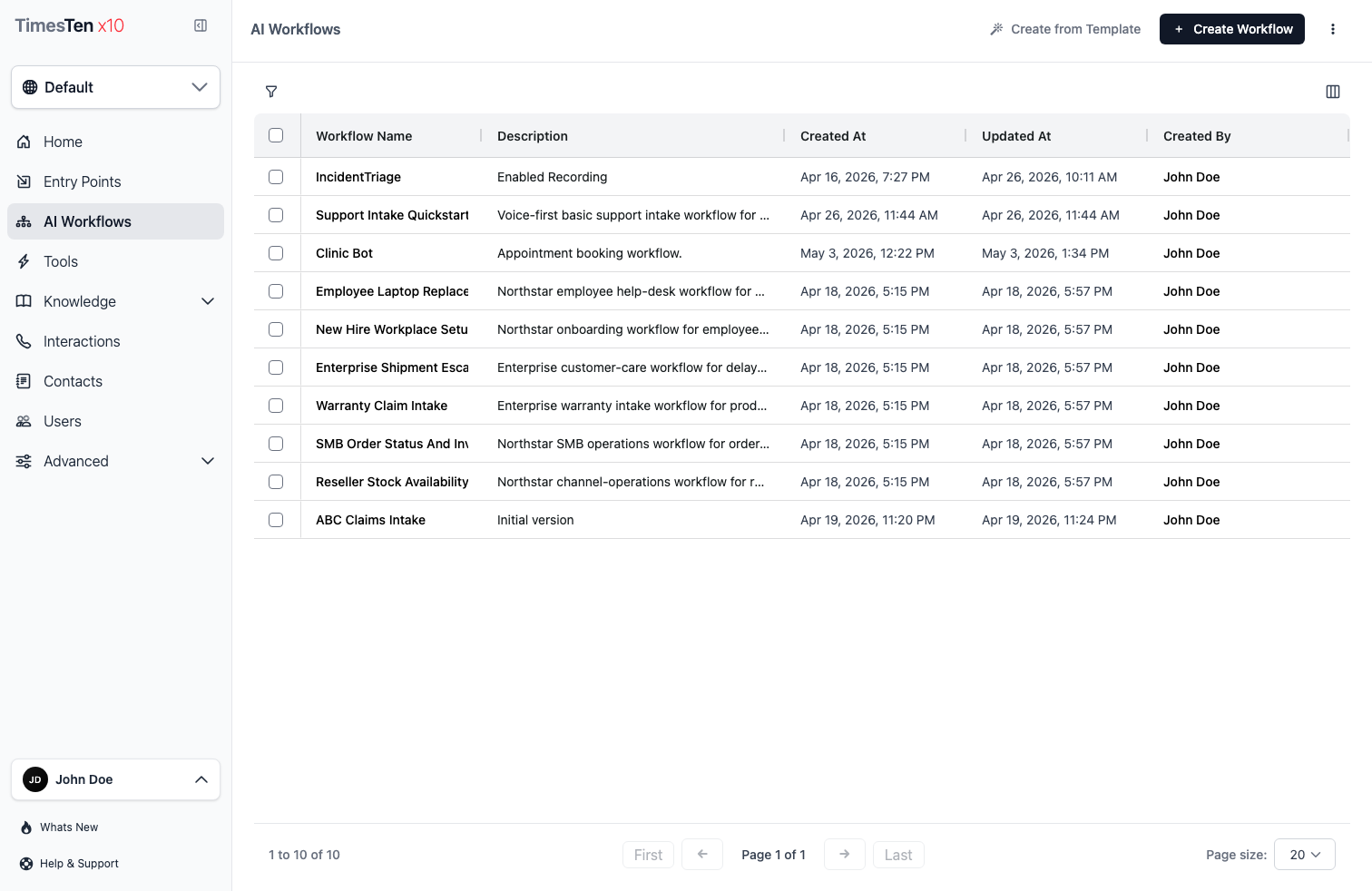
Section titled “AI Workflows list”The AI Workflows list is the control surface for workflow containers. It is where you create new workflows, find existing ones, and manage imports or exports.
- Workflow Name is the primary identifier and opens the workflow detail view.
- Description gives the operational purpose of the workflow.
- Created At / Updated At help you understand how current the workflow is.
- Created By / Updated By show ownership and edit history.
- Bulk actions let you export or delete selected workflows.
Use the list page to create a blank workflow, start from a template, import workflow JSON, export a workflow, or remove workflows that should no longer be used.
Templates, import, and export
Section titled “Templates, import, and export”Use these actions when you need to start faster, move workflow definitions between environments, or take a backup before larger edits.
Create a blank workflow
- Open AI Workflows.
- Click Create Workflow.
- Enter a required name.
- Add an optional system prompt.
- Confirm to open a new draft with a Start node.
Start from a template
- Open AI Workflows.
- Click Create from Template.
- Search by name, industry, or use case.
- Preview the template and choose Use template.
- Review every node and workflow-level setting before publishing.
Import workflow JSON
- Start an import from the list page or open a draft and choose the import action.
- Paste valid workflow JSON.
- Review the imported graph, tools, variables, prompts, and phone settings.
- Save the draft.
- Test before publishing.
Import is safest for drafts. Published versions are read-only, so create or open a draft before replacing workflow structure.
Export workflow JSON
Use export before major edits or whenever you want a backup of the current workflow definition.
- From workflow detail, use the more menu to copy or export the current workflow JSON.
- From the list page, select workflows and use Export Selected.
Review imported workflows carefully in the target space. Referenced tools or contacts may need to exist there before the workflow can run correctly.
Where to go next
Section titled “Where to go next”After you choose or create a workflow, most work continues in one of these areas:
- Workflow Builder to shape the graph, node order, and branching behavior.
- Workflow configuration to manage prompts, tools, variables, LLM settings, and phone behavior.
- Node reference to understand what each node type does and how to use it.
- Versions and publishing to save drafts, inspect version history, and publish stable versions.
- Testing and debugging to validate behavior before and after release.
Recommended path
Section titled “Recommended path”- Read Workflow Builder to understand the canvas, stencil panel, inspector, toolbar, and test panel layout.
- Open Node reference and choose the nodes your workflow needs.
- Configure workflow-wide settings in Workflow configuration.
- Save and publish with Versions and publishing.
- Route traffic from Entry Points and debug with Testing and debugging.
Should I start from a template or a blank workflow? Use a template when the flow matches a known pattern you can adapt. Use a blank workflow when the routing, node order, or prompts are specific to your operation.
Can one workflow support multiple channels? Yes. Multiple entry points can route to the same published workflow version when the workflow behavior is appropriate for those channels.
Where should node-specific details live? Use the Node reference and individual node pages. Keep this page focused on the workflow lifecycle.
Related pages
Section titled “Related pages”- Entry Points - connect inbound channels to published workflow versions
- Tools - create integrations that Tool and AI Agent nodes can call
- Interactions - view conversations processed by workflows
- Knowledge - add structured data that AI agents can reference
- Developer Runtime Guide - understand graph execution, waits, and resume behavior