

Workflow Configuration
Workflow configuration controls settings that apply across a workflow version, beyond the individual nodes on the canvas.
Configuration is where you define the shared behavior of a workflow version. Instead of configuring each node in isolation, you use this surface to set the defaults and shared resources that the whole draft depends on.
How configuration fits into a workflow version
Section titled “How configuration fits into a workflow version”Workflow settings and node settings work together, but they do not solve the same problem.
- Use Builder when you need to decide what the graph should do step by step.
- Use Configuration when you need to decide what the workflow version should know, allow, or inherit globally.
That includes language and voice defaults, available tools, prompt and model settings, reusable variables, phone behavior, and analysis prompts for finalized interactions.
Configure a workflow version
Section titled “Configure a workflow version”Use this sequence when preparing a draft for testing or publication:
- Open an AI Workflow draft.
- Select the Configuration tab.
- Set the sections that apply to the workflow’s channel and runtime behavior.
- Validate voice settings if the workflow will receive phone traffic.
- Save the draft.
- Test the workflow before publishing.
Configuration sections
Section titled “Configuration sections”Each section controls a different part of runtime behavior:
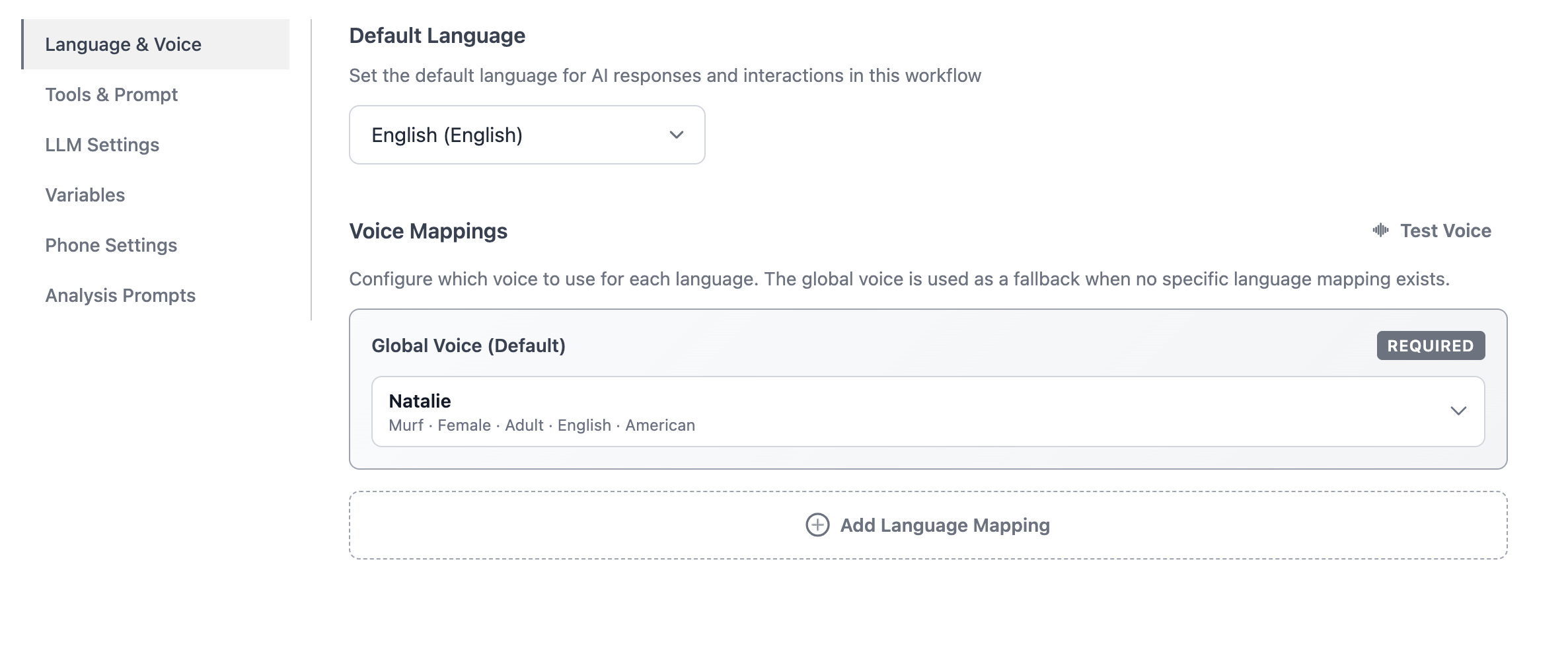
- Language & Voice sets the default language, global voice, and language-specific voice mappings.
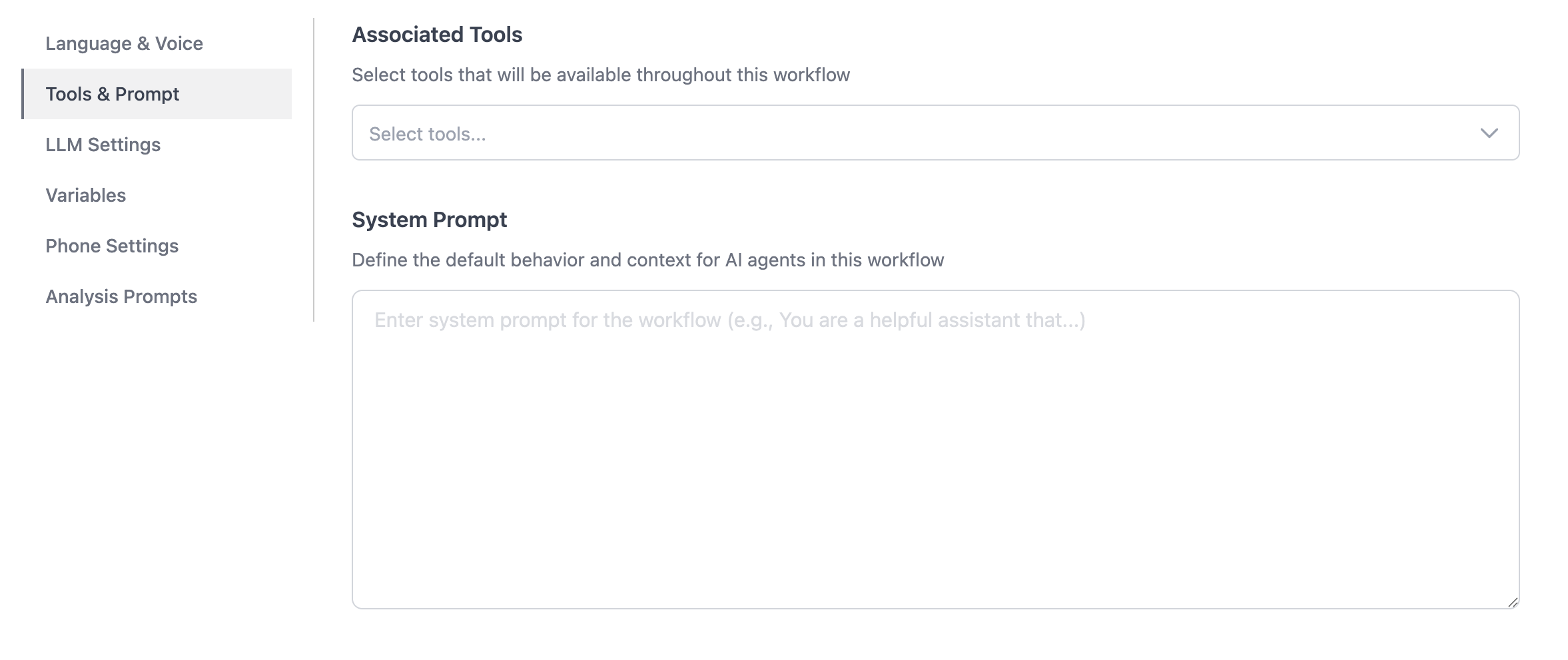
- Tools & Prompt controls the system prompt, available tools, and any tool context shared across the workflow.
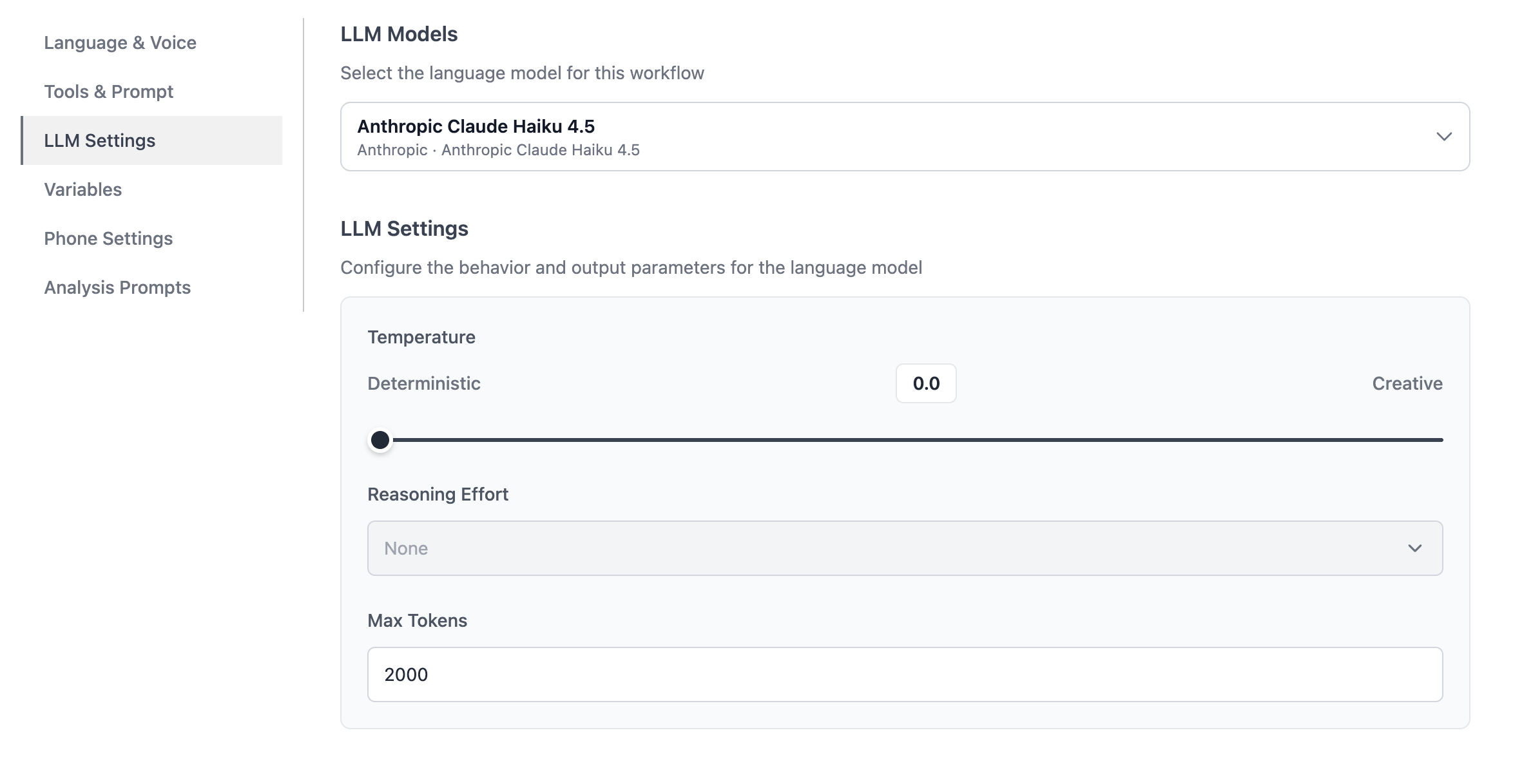
- LLM Settings defines the model provider, temperature, max tokens, and provider-specific reasoning behavior.
- Variables stores reusable workflow-level values that nodes can reference.
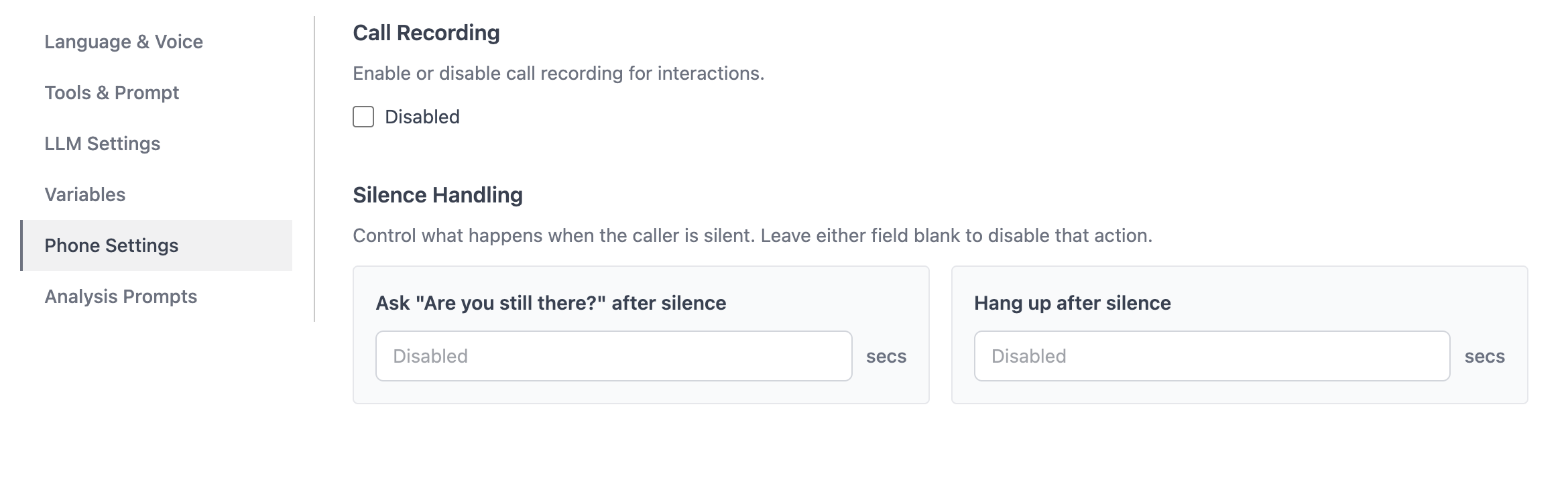
- Phone Settings controls voice-specific behavior such as recording, still-there prompts, and hang-up timing.
- Analysis Prompts shapes the topic, sentiment, and summary metadata produced for finalized interactions.
Voice-specific checks
Section titled “Voice-specific checks”If the workflow will receive voice traffic through Entry Points, review phone behavior carefully before publishing:
- Confirm the voice and language defaults are correct for the production channel.
- Check that still-there timing and hang-up timing make sense together.
- Make sure recording behavior matches the operational requirement for that workflow.
- Verify the workflow is voice-ready before attaching it to a live phone number.
Configuration and nodes
Section titled “Configuration and nodes”Workflow settings and node settings work together.
- Tools & Prompt determine what AI Agent nodes can use and what global instruction context they inherit.
- LLM Settings influence how AI behavior is generated across the workflow version.
- Variables provide shared values that should stay consistent across nodes.
- Phone Settings affect voice-oriented behavior such as playback, transfer readiness, and call handling.
- Analysis Prompts determine how finalized interactions are summarized and classified afterward.
Pre-publish checklist
Section titled “Pre-publish checklist”Before publishing a workflow version, confirm:
- Language and voice settings match the intended channel.
- Required tools are enabled and described clearly.
- Prompt and LLM settings match the expected AI behavior.
- Shared variables are present and named consistently.
- Phone settings are valid for voice workflows.
- Analysis prompts are ready if the team relies on summaries, topic tags, or sentiment.
- The workflow has been tested after configuration changes.
Do configuration edits affect published versions? Published versions are locked. Create or edit a draft, make changes, then publish a new version.
Should every workflow configure phone settings? Only voice workflows need phone-specific settings. Chat or web flows can leave voice-only settings alone unless they will also route voice traffic.
Related pages
Section titled “Related pages”- Workflow Builder - configure node-level behavior
- AI Agent node - use prompts, tools, and model settings inside the graph
- Interactions - review analysis metadata after execution