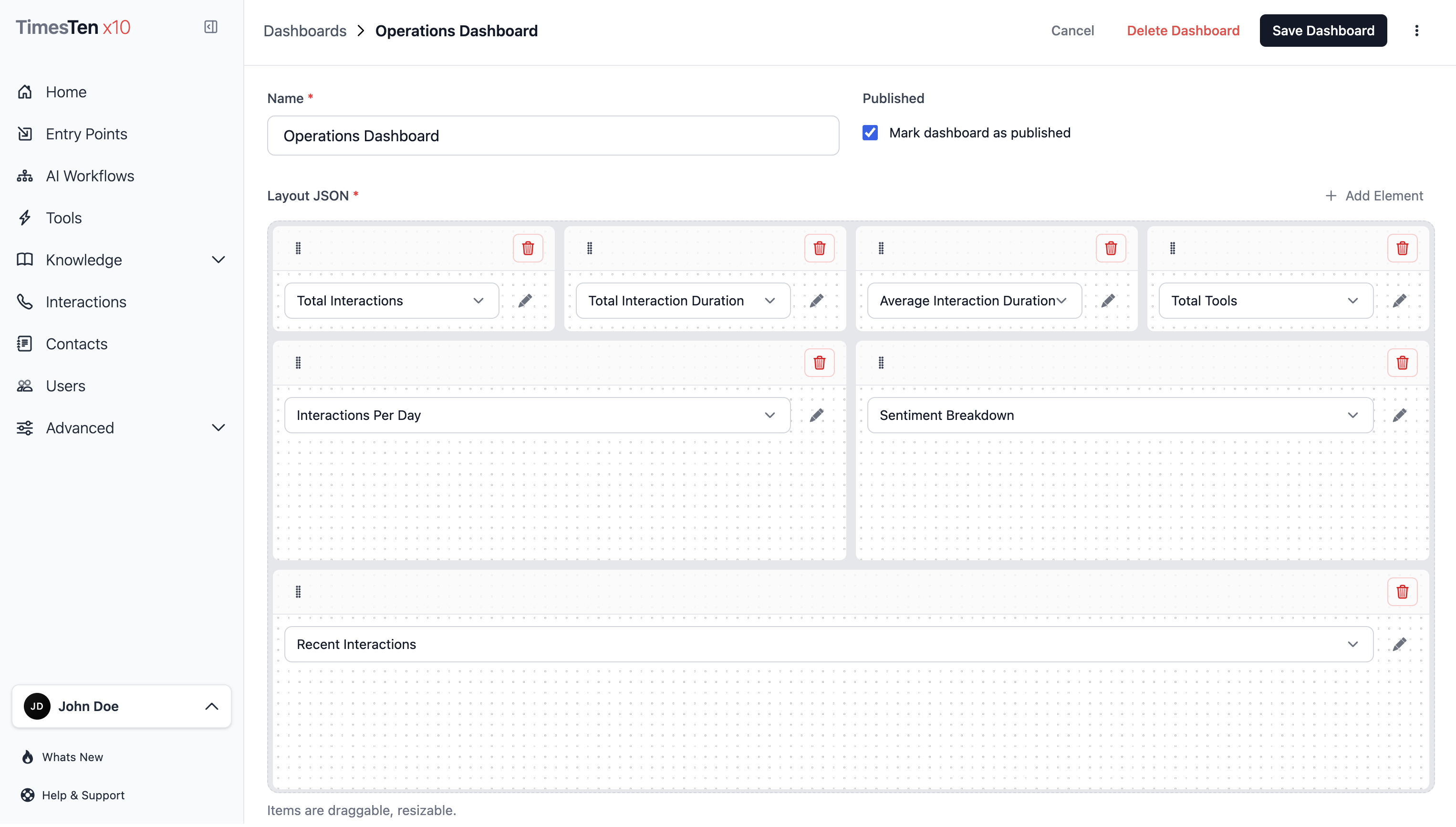

Dashboards
A dashboard is a custom layout of widgets that visualize data — built with a drag-and-drop grid and powered by JavaScript scripts that query your data.
Dashboards are the display layer for your operational data. They turn widget scripts into a reusable layout that can be published to the home page and filtered by real workflow activity.
How dashboards fit into analytics
Section titled “How dashboards fit into analytics”- A dashboard is the layout.
- A widget is the visualization or scripted component placed into that layout.
- A published dashboard becomes selectable on the home page.
Use dashboards when you need a repeatable operational view, not just a one-off query or a raw data export.
Create a dashboard
Section titled “Create a dashboard”- Select Dashboards in the sidebar.
- Click Create Dashboard.
- Enter a name.
- Add widgets to the layout (see below).
- Check Published to make it available on the home page.
- Click Save Dashboard.
Add and arrange widgets
Section titled “Add and arrange widgets”The dashboard editor uses a 12-column drag-and-drop grid:
- Click Add Layout Item to add a widget slot.
- Select a widget from the dropdown.
- Drag the widget by its handle to reposition it.
- Resize the widget by dragging its bottom-right corner.
- Repeat for additional widgets.
Each layout item has position (x, y) and size (width, height) controls you can also set manually.
The dashboard stores widget placement as grid coordinates and dimensions, so layout is part of the dashboard definition rather than a temporary view state.
Keep related widgets near each other, reserve wide rows for charts, and use smaller tiles for KPI-style summaries.
View dashboards on the home page
Section titled “View dashboards on the home page”Published dashboards appear on the Home page:
- Select Home in the sidebar.
- Choose a dashboard from the dropdown at the top.
- Use the filters to narrow the data:
- Workflow — filter by one or more AI workflows
- Date preset — Last 24 Hours, Today, Yesterday, Last 7/14/30 Days
The selected dashboard and filters are remembered between sessions.
Publish and maintain a dashboard
Section titled “Publish and maintain a dashboard”- Use the Published toggle when the dashboard should be available on Home.
- Save after layout changes so widget positions persist.
- Revisit dashboards when widget scripts change, when workflows are renamed, or when teams need a different operational view.
Delete dashboards
Section titled “Delete dashboards”- Open the dashboard you want to remove.
- Click Delete Dashboard.
- Confirm the deletion.
To delete multiple dashboards, select them on the list page and click Delete Selected.