

Entry Points
An entry point is the routing layer between an inbound endpoint, such as a phone number, and the published AI workflow version that should handle that traffic.
Entry Points turn a public-facing channel into a working AI route. In the current product, the primary production flow is a phone entry point: choose a purchased number, attach it to a published workflow version, and save. After that, each incoming call to that number starts an interaction on the selected workflow version.
How entry points work
Section titled “How entry points work”The routing model is straightforward:
- A user calls or messages the configured endpoint.
- Octo matches that endpoint to an entry point in the active space.
- The entry point hands the interaction to the selected published workflow version.
- The workflow runs and the conversation is recorded in Interactions.
This separation is useful operationally: you can keep the same phone number while repointing future traffic to a newer published workflow version.
Before you start
Section titled “Before you start”For a production phone entry point, make sure these prerequisites are already in place:
- A purchased number in Phone Numbers. The endpoint selector only shows numbers that belong to the active space.
- A published version of the target workflow in AI Workflows. Drafts do not appear in the version selector.
- Workflow settings that are ready for live traffic. Voice, language, phone, and recording behavior come from the workflow version you attach.
Phone entry points are available today. Email and SMS options may appear in the product model, but they should be treated as coming soon until those channels are released for production use.
Create a phone entry point
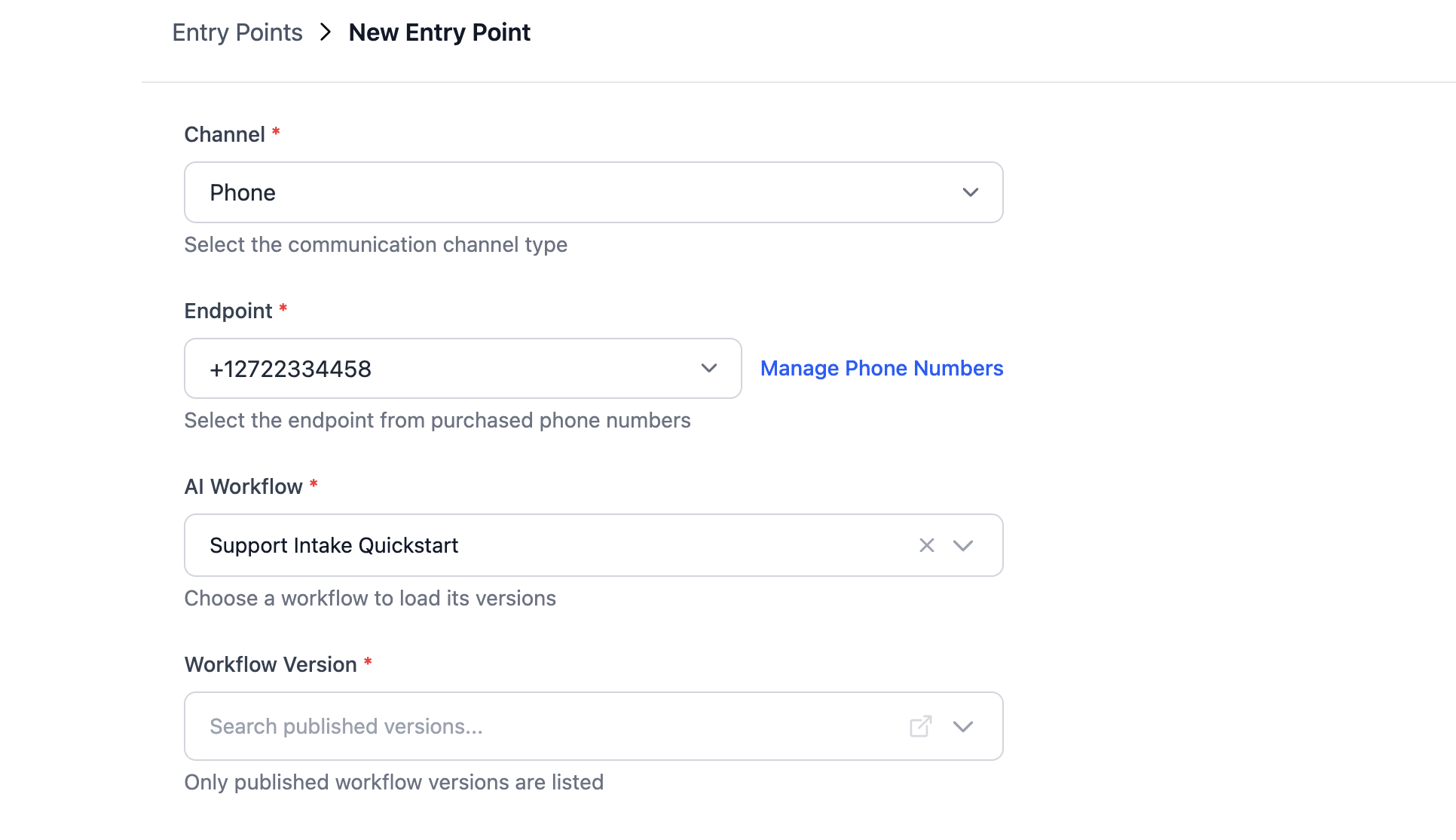
Section titled “Create a phone entry point”Use this flow when you want to connect a purchased number to a live workflow:
- Open Entry Points.
- Click Create Entry Point.
- Select Phone as the channel.
- Choose the phone number that should receive inbound traffic. If the number you need is missing, open Manage Phone Numbers and purchase or assign the number first.
- Search for and select the target AI workflow.
- Select the workflow version that should receive production traffic. Only published versions are available here.
- Click Save Entry Point.
After saving, call the selected number to confirm the route creates a new interaction and reaches the expected workflow behavior.
Manage existing entry points
Section titled “Manage existing entry points”Once an entry point exists, the same detail view is where you maintain it.
Edit an entry point
- Open the entry point from the list by clicking its endpoint.
- Update the endpoint, workflow, or workflow version fields you want to change.
- Click Save Entry Point.
If you leave the page with unsaved changes, the product prompts you to confirm.
Duplicate an entry point
- Open the entry point you want to copy.
- Open the more menu and select Duplicate Entry Point.
- Adjust the duplicated route as needed.
- Save the new entry point.
Delete one or more entry points
- To delete a single route, open it, click Delete Entry Point, and confirm.
- To bulk delete, select multiple rows on the list page, click Delete Selected (N), and confirm.
What you see on the list page
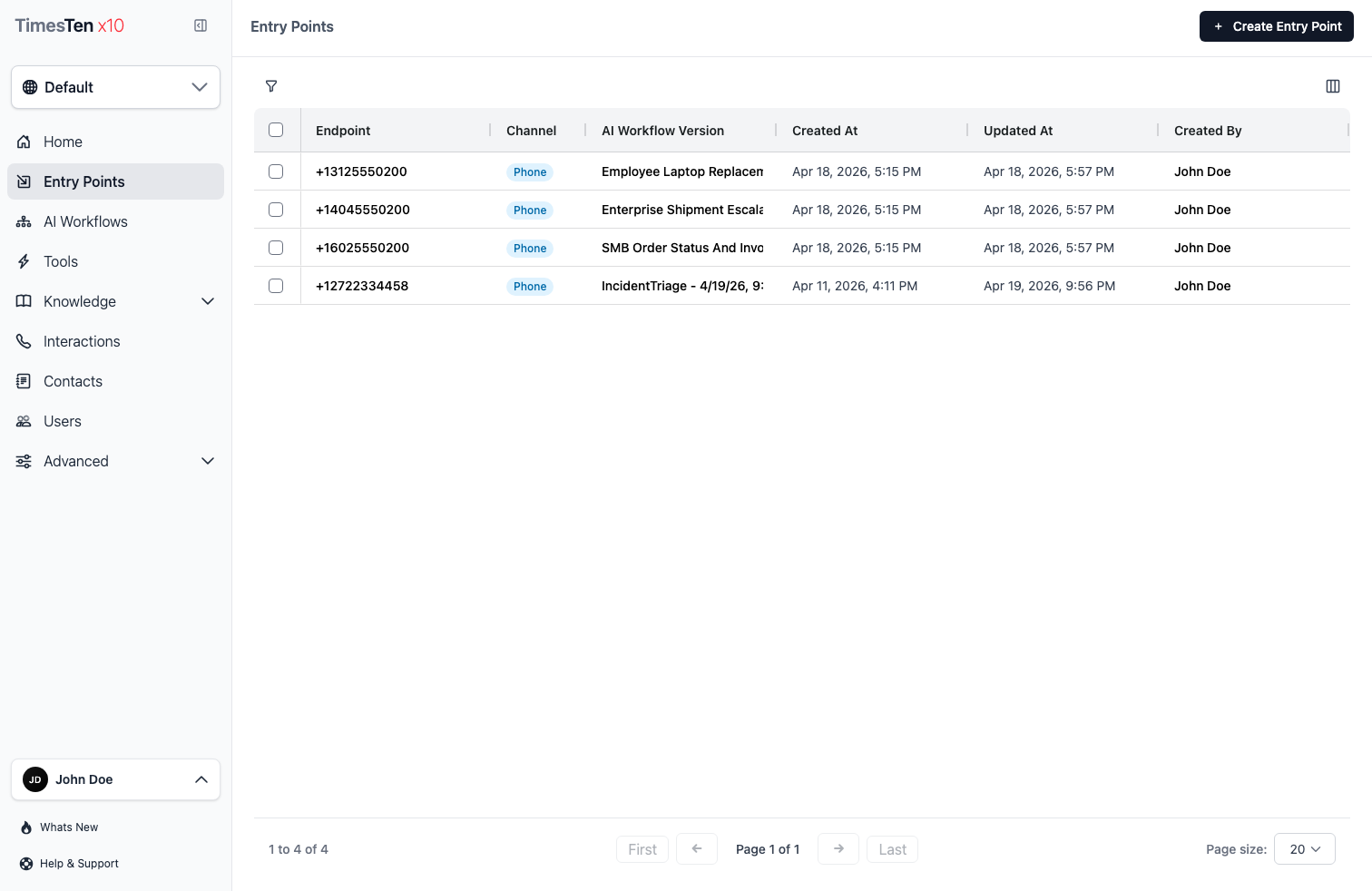
Section titled “What you see on the list page”The list page is the operational view for every configured route in the current space.
- Endpoint shows the public-facing address, such as a phone number. Click it to open the entry point.
- Channel shows the route type.
- AI Workflow Version shows which published workflow version currently handles traffic.
- Created At and Updated At help you understand when the route was created and last changed.
- Created By shows who created the route.
Use the filters to narrow the list by endpoint text, channel type, or date range when you need to find a route quickly.
Troubleshoot no traffic
Section titled “Troubleshoot no traffic”The phone number is missing from the dropdown. Confirm the number exists in Phone Numbers and belongs to the active space.
The workflow version selector is empty. Publish a workflow version before returning to the entry point form.
Calls arrive but no interaction is created. Check that the number is assigned to the entry point, the workflow version is still selected, and the space has available credits.
Traffic is using older workflow behavior. Update the entry point to a newer published version. In-progress interactions stay on the version they started with.
Can I connect multiple entry points to the same AI workflow? Yes. Multiple entry points can route to the same workflow, even using different channels.
What happens if I change the workflow version on an entry point? New conversations will use the updated version. In-progress conversations continue on the version they started with.
Why don’t I see any phone numbers in the endpoint dropdown? You need to purchase phone numbers first. Click Manage Phone Numbers to go to the Phone Numbers section and buy a number.
Related pages
Section titled “Related pages”- AI Workflows — build the workflows that entry points route to
- Phone Numbers — purchase and manage phone numbers for voice entry points
- Interactions — view conversations that arrive through entry points