

Contacts
A contact is a person, endpoint, or SIP identity that your workflows can call and route conversations to — used with the Transfer stencil in AI workflows.
Contacts are outbound handoff targets. They are not inbound entry points and they are not user accounts. Their main job is to give workflows a clean place to store the destinations that a Transfer step can call.
How contacts fit into a workflow
Section titled “How contacts fit into a workflow”- Use a contact when the workflow should transfer a call to a person, queue, phone number, or SIP endpoint.
- Use Entry Points when you are configuring how traffic enters the workflow.
- Use Phone Numbers when you are managing inbound voice numbers.
That distinction matters because contacts are outbound destinations, not inbound routing records.
Choose Number or SIP Endpoint
Section titled “Choose Number or SIP Endpoint”- Number Use a phone number with country code when the workflow should transfer to a standard call destination.
- SIP Endpoint Use a SIP URI when the handoff target lives on a SIP-based voice system.
Choose the type based on the actual transfer destination the telephony path expects.
Add a contact
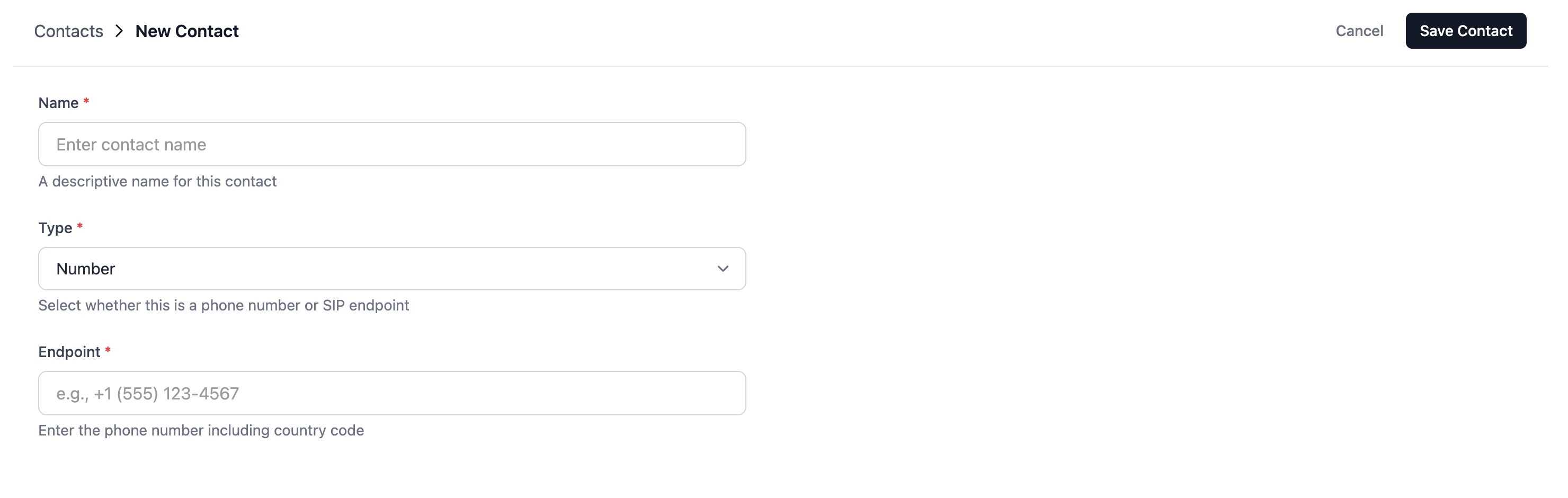
Section titled “Add a contact”- Select Contacts in the sidebar.
- Click Add Contact.
- Enter a name for the contact.
- Select a type — Number or SIP Endpoint.
- Enter the endpoint:
- For numbers, enter the phone number including country code.
- For SIP endpoints, enter the SIP URI (e.g., sip:user@domain.com).
- Click Save Contact.
Find and review contacts
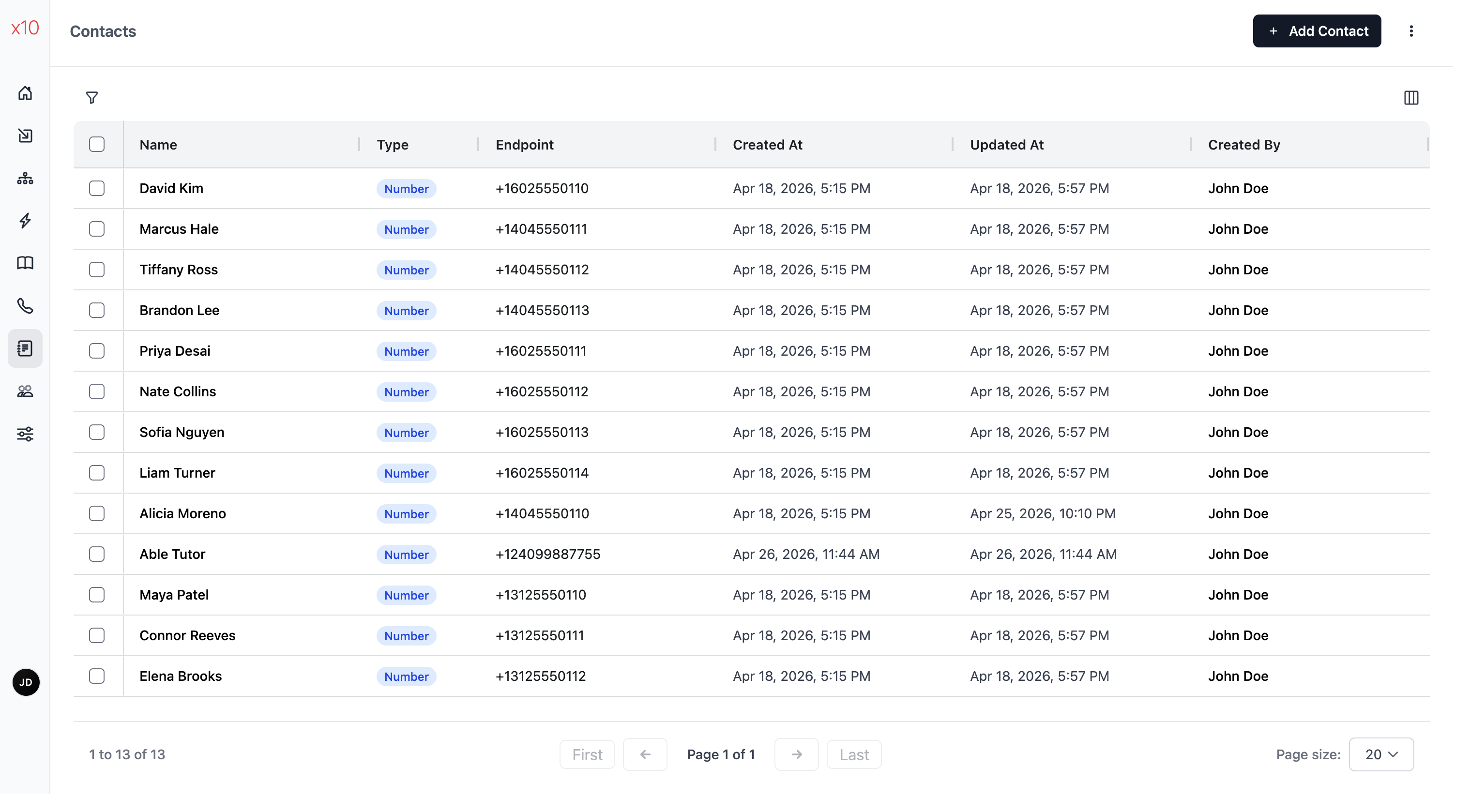
Section titled “Find and review contacts”The contacts list is the main management surface for your transfer destinations.
- Name identifies the contact record.
- Type shows whether the destination is a number or SIP endpoint.
- Endpoint shows the actual handoff destination.
- Created At and Updated At help track when the destination was added or changed.
- Created By shows who created it.
Use contacts for transfers
Section titled “Use contacts for transfers”Contacts are selected by the Transfer node when a workflow should hand a voice conversation to another destination.
- A contact is the outbound transfer target.
- A phone number is usually the inbound endpoint a caller dialed.
- A user is a Octo sign-in identity, not a transfer target.
Before using a contact in production, confirm the destination behaves correctly from a safe test path and that the receiving system or person is ready for transferred calls.
Edit or duplicate a contact
Section titled “Edit or duplicate a contact”- Select Contacts in the sidebar.
- Click the contact’s name in the list.
- Modify the fields you want to change.
- Click Save Contact.
If you navigate away with unsaved changes, you will be prompted to confirm.
To duplicate a contact:
- Open an existing contact.
- Use Duplicate Contact from the more menu.
- Update the copied details as needed.
- Save the new contact.
Import and export contacts
Section titled “Import and export contacts”Import: On the list page, click Import Contact(s) from JSON and paste a JSON array:
[ { "name": "John Doe", "type": "Number", "endpoint": "+1 (555) 123-4567" }, { "name": "SIP Server", "type": "SIP Endpoint", "endpoint": "sip:server@example.com" }]Export: Select contacts on the list page and click Export Selected. The JSON is copied to your clipboard.
Import and export are useful when you need to migrate contact lists, back them up, or seed a tenant quickly.
Delete contacts
Section titled “Delete contacts”Single delete:
- Open the contact you want to remove.
- Click Delete Contact.
- Confirm the deletion.
Bulk delete:
- Select Contacts in the sidebar.
- Select the checkboxes next to the contacts you want to remove.
- Click Delete Selected.
- Confirm the deletion.
Are contacts created automatically from interactions? No. Contacts are created manually or by importing JSON. They are not auto-generated from interaction data.
How do I use a contact in a workflow? Use the Transfer stencil in the Workflow Builder. Select the contact you want to transfer the conversation to.
What’s the difference between a contact and a phone number? Phone numbers (in the Phone Numbers section) are Twilio numbers you purchase for inbound calls via entry points. Contacts are outbound endpoints — people or systems your workflows can transfer calls to.
Related pages
Section titled “Related pages”- AI Workflows — use the Transfer stencil to route conversations to contacts
- Interactions — view conversations involving contacts
- Phone Numbers — manage inbound Twilio numbers (different from contact endpoints)