

Tool Node
The Tool node calls a configured Octo Tool so a workflow can interact with external systems or reusable script logic.
Use Tool when the workflow already knows it must call an external integration or reusable script at that step. Unlike AI Agent tool access, this node makes the integration call explicit on the canvas.
When to choose Tool
Section titled “When to choose Tool”Tool is usually the right node when:
- the workflow must always call a specific integration,
- the integration should be visible as a separate step on the graph,
- a later node depends on the returned payload, or
- you want deterministic control over when the call happens.
Typical use cases include looking up a customer, creating a ticket, sending a notification, fetching account data, or reusing a script-based transformation.
How the node works in a workflow
Section titled “How the node works in a workflow”- Execution reaches the Tool node.
- Octo runs the selected Tool with the available runtime context.
- The response is stored for downstream use.
- The workflow continues to the connected next step.
Tool nodes often sit between reasoning and action: an AI Agent or extraction step prepares the input, the tool runs, and a later node uses the result.
What to configure
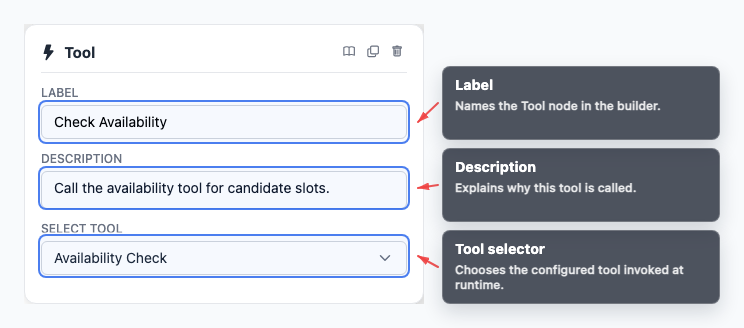
Section titled “What to configure”- Tool selection chooses which saved Octo Tool should run.
- Tool type shows whether the selected tool is REST API or Script.
- Configuration JSON can add per-node configuration where supported.
- Label makes the action readable on the canvas.
Name the node after the business action it performs, not only the integration name. That makes the graph easier to review later.
Common workflow patterns
Section titled “Common workflow patterns”- Lookup before response Fetch data first, then let AI Agent explain or confirm it.
- Create external record Create a ticket, task, event, or message in another system.
- Validate user input Check a code, account, or status before branching through If/else.
Example configuration patterns
Section titled “Example configuration patterns”- A lookup tool can pass extracted workflow fields into its payload with references such as
${fields.city}and${fields.date}. - A downstream inspection or delivery tool can reference upstream output through paths such as
${nodes.producer.output.scalar}or${nodes.agent.output.exitCondition.name}.
Visual reference
Section titled “Visual reference”Canvas
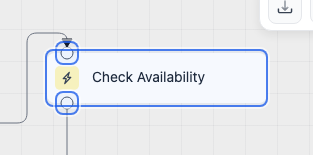
Section titled “Canvas”The canvas view shows where the integration step occurs in the broader workflow path.
Inspector
Section titled “Inspector”The inspector is where you choose the tool and confirm the node-specific configuration.
What to watch out for
Section titled “What to watch out for”- Prefer AI Agent tool access when the agent should decide whether a tool is necessary.
- Test the tool itself before relying on the workflow path.
- Plan how downstream nodes should react when the tool returns missing or unexpected data.
- Keep the node label descriptive so failures are easier to trace in execution history.
Should I use Tool node or AI Agent tool access? Use Tool node when the graph should always call a specific tool at that point. Use AI Agent tool access when the agent should decide whether a tool is needed.
Where do I test the tool itself? Use Tools or Developer Tools API before relying on the node in production.
Related pages
Section titled “Related pages”- Tools - create and test tools
- AI Agent node - let an agent decide when to call tools
- Testing and debugging - inspect tool calls in transcripts