

Tools
A tool is an external REST API or script integration that AI agents can invoke during workflow execution — extending what your agents can do beyond conversation.
Tools are reusable capabilities that workflows and AI Agent nodes can call when a conversation needs something more than text generation. They are the bridge between the workflow and the systems, services, or logic that do real work.
How tools fit into a workflow
Section titled “How tools fit into a workflow”- Use a tool when the workflow needs to fetch data, create or update a record, send a message, or run deterministic logic outside the conversational prompt itself.
- Use a Tool node in AI Workflows when the graph should always call that tool at a specific step.
- Use AI Agent tool access when the agent should decide whether a tool is needed as part of reasoning.
Tools are most useful when you already know the action you want the workflow to take and need that action to be repeatable, inspectable, and testable.
Choose REST API or Script
Section titled “Choose REST API or Script”- REST API tools make HTTP requests to external endpoints. Use them for standard service integrations such as Jira, Slack, ServiceNow, Gmail, Salesforce, Stripe, or your own APIs.
- Script tools run custom JavaScript. Use them when you need local transformations, calculations, or lightweight logic that does not belong in a workflow node.
In simple terms: choose REST API for external systems, choose Script for custom code.
Before you create a tool
Section titled “Before you create a tool”Before building the tool, decide:
- what action the tool should perform,
- what inputs the AI agent or workflow must provide,
- what response shape downstream nodes will need,
- what should happen if the tool fails or takes too long,
- and whether the action belongs in a reusable Tool or directly in workflow logic.
Create a tool
Section titled “Create a tool”From blank
Section titled “From blank”- Select Tools in the sidebar.
- Click Create Tool.
- Enter a name and optional description.
- Choose a tool type: REST API Configuration or Script.
- Configure the tool (see sections below).
- Click Save Tool.
From a template
Section titled “From a template”- Select Tools in the sidebar.
- Click the template icon (magic wand).
- Search for a service or action (e.g., “Jira”, “Send Email”).
- Select a template action and preview its description.
- Click Use template. The form populates with the template’s configuration.
- Fill in your credentials and adjust settings as needed.
- Click Save Tool.
Templates are a fast starting point, but they still need review. Treat them as scaffolding, not production-ready final configurations.
From a cURL command
Section titled “From a cURL command”- Open a tool (new or existing) with REST API type selected.
- Click Import from cURL.
- Paste your cURL command into the text area.
- Review the parsed result — method, endpoint, headers, params, and body are shown.
- Click Import. The fields populate automatically.
- Click Save Tool.
Configure a REST API tool
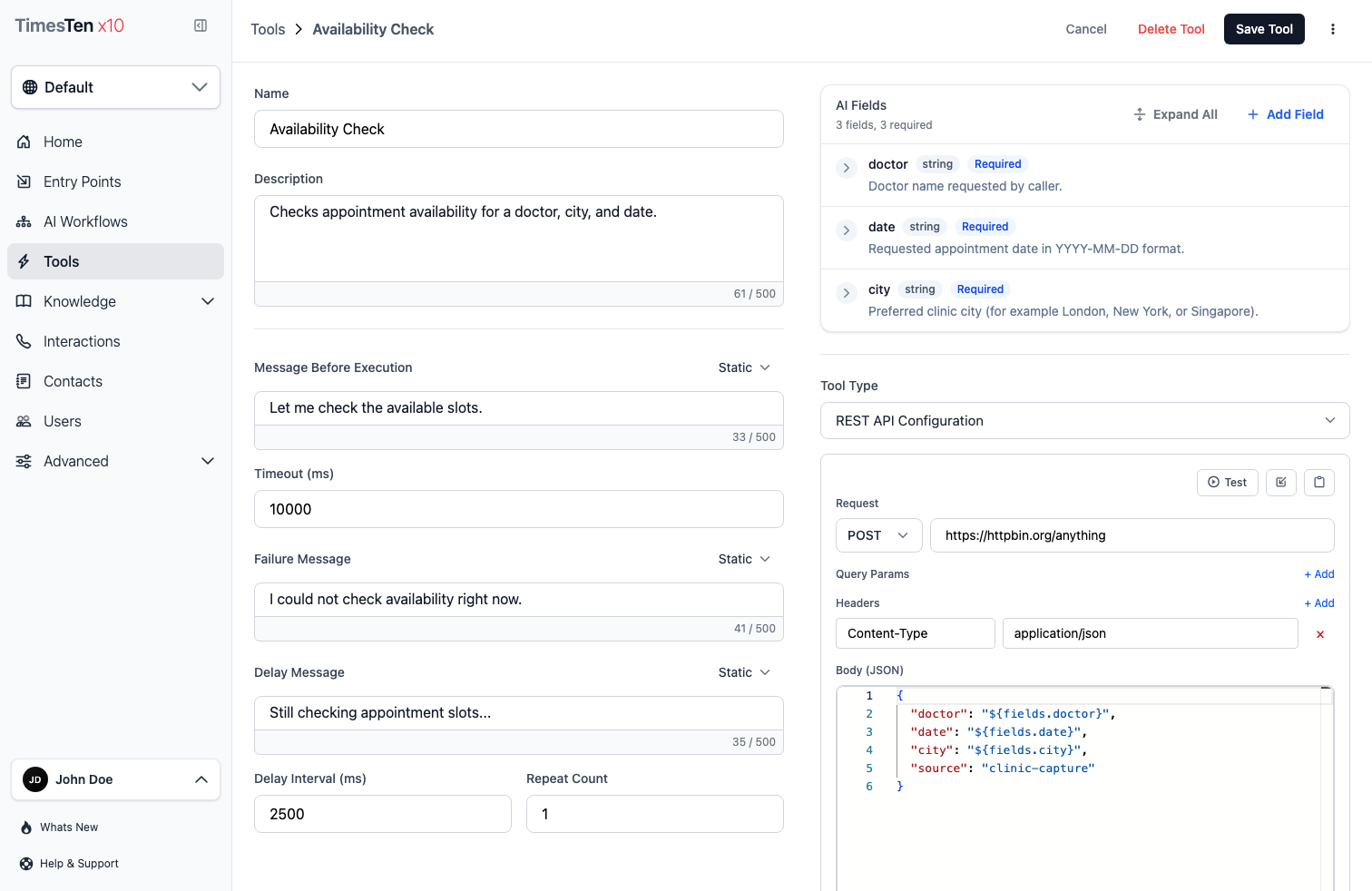
Section titled “Configure a REST API tool”For an HTTP tool, the most important fields are:
- Method The HTTP verb such as GET, POST, PUT, PATCH, or DELETE.
- URL / Endpoint The destination API endpoint.
- Query Params Key-value pairs appended to the URL.
- Headers Key-value pairs sent with the request, including auth or content-type values.
- Body The JSON payload used for POST, PUT, and PATCH requests.
You can use template variables in any field, such as ${fields.email}. At runtime, those values are filled from the AI fields or other workflow-provided context.
Configure a script tool
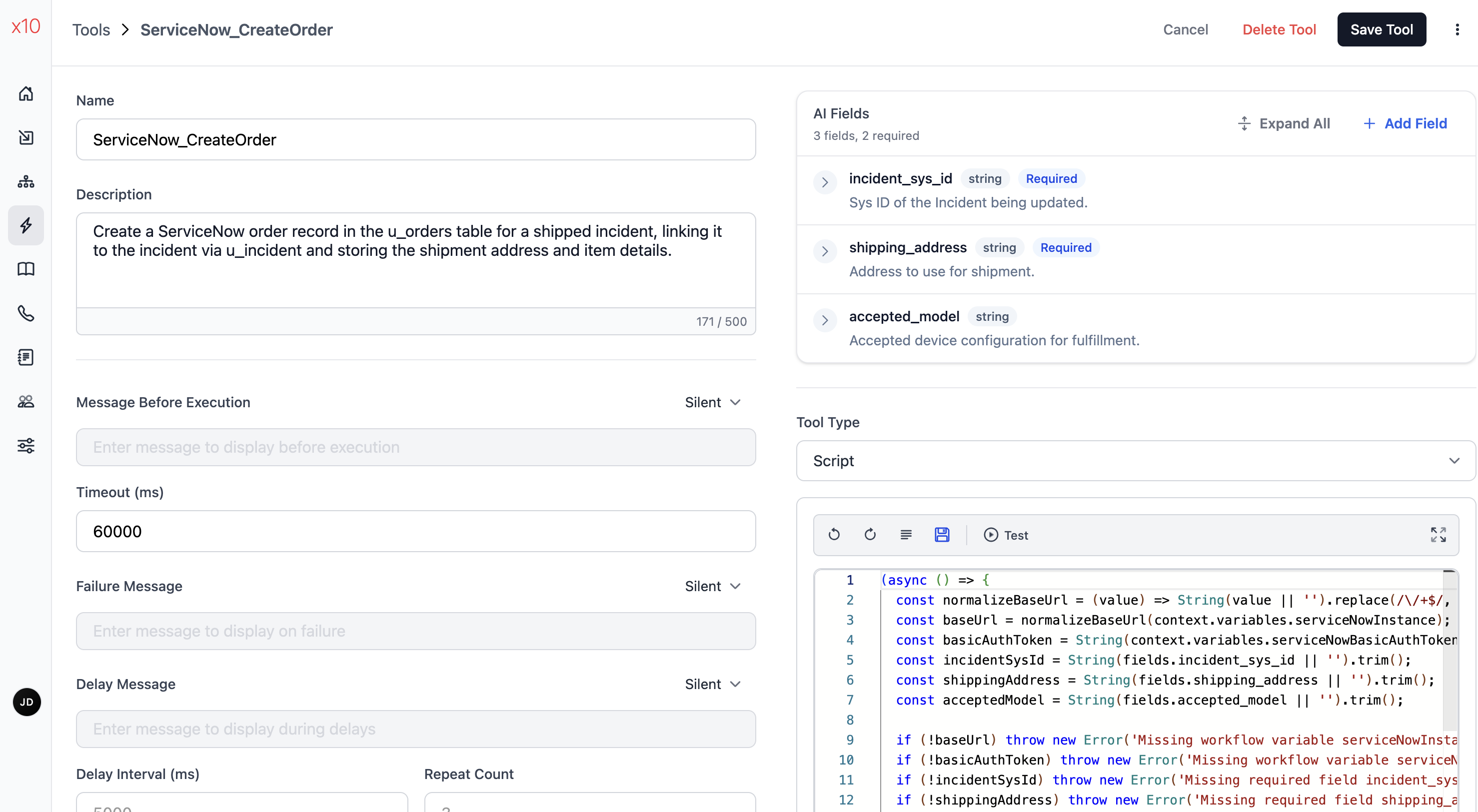
Section titled “Configure a script tool”The script editor provides a JavaScript environment with syntax highlighting, undo/redo, code formatting, and fullscreen mode.
Use script tools when the logic should stay reusable and testable but does not belong in a workflow node itself.
Your script receives a context object and should return a result. A slightly more realistic example validates a few inputs first and then returns a normalized payload for downstream use:
async function execute(context) {  const fields = context.fields || {};
  const incidentId = String(fields.incident_sys_id || "").trim();  const shippingAddress = String(fields.shipping_address || "").trim();  const acceptedModel = String(fields.accepted_model || "").trim();
  if (!incidentId || !shippingAddress) {    throw new Error("Missing required shipment fields.");  }
  return {    incident_sys_id: incidentId,    shipping_address: shippingAddress,    accepted_model: acceptedModel || null,    ready_for_fulfillment: true,  };}
Keep script tools focused. They work best when they do one reusable job well, such as shaping a payload, normalizing fields, or deriving a simple computed value.
Define AI fields
Section titled “Define AI fields”AI fields tell the AI agent what inputs to provide when invoking the tool.
- Name The variable key the tool expects.
- Type The value shape, such as string, number, boolean, array, or object.
- Description The explanation the AI agent reads to understand what it should provide.
- Required Whether the field must be present for the tool call to make sense.
Write AI field descriptions as if you are instructing another engineer what this input means. Clear field descriptions lead to better runtime arguments.
Advanced runtime behavior
Section titled “Advanced runtime behavior”These optional settings control how the end user experiences a running tool:
- Message before execution What the agent says while the tool starts, including silent or generated options.
- Timeout How long the workflow waits for a response.
- Failure message What the agent says when the tool fails.
- Delay message What the agent says if the tool is still running after the configured delay.
- Delay interval / Repeat count How often and how many times the delay message should appear.
Keep these messages short and user-facing. Avoid exposing internal provider names, headers, raw API errors, or implementation details.
Test a tool
Section titled “Test a tool”- Open the tool you want to test.
- Click Test in the toolbar.
- Fill in any template variables (these simulate what the AI agent would provide).
- Click Run.
- Review the response:
- Status — success or failure badge
- Summary — status code, status text, and execution time
- Headers — response headers
- Body — response body
What to inspect after a test
Section titled “What to inspect after a test”- Confirm the request used the expected method, endpoint, and variables.
- Check the response shape matches what downstream nodes or agents expect.
- Compare failures with the same request outside the workflow if needed.
- Review whether the failure, delay, and pre-execution messages still make sense for the user-facing experience.
Available templates
Section titled “Available templates”| Service | Available actions |
|---|---|
| Jira | Search Issues, Get Issue, Create Issue, Update Issue, Add Comment, Transition Issue |
| Confluence | Create Page, Update Page, Add Comment |
| Statuspage | Create Incident, Update Incident |
| Gmail | Send Email, Get Message |
| Google Calendar | Create Event, Get Event, Update Event, List Events |
| Salesforce | Create Record, Get Record, Update Record, Query Records |
| ServiceNow | Create Ticket, Get Ticket, Update Ticket, Query Tickets |
| Slack | Send Message, Post Thread Reply, Get User |
| Twilio | Send SMS, Send WhatsApp, Make Voice Call |
| Stripe | Create Payment, Refund Payment, Get Customer |
Import, export, and duplicate
Section titled “Import, export, and duplicate”- Duplicate Copy an existing tool when you want a similar integration without re-entering every field.
- Export Select tools on the list page and click Export Selected. The JSON is copied to your clipboard.
- Import On the list page, click Import Tool(s) from JSON and paste the JSON.
- Copy as cURL On a REST API tool, click Copy as cURL to get a command you can run outside the product.
These actions are useful for backup, migration, review, and faster experimentation.
Delete a tool
Section titled “Delete a tool”- Open the tool you want to remove.
- Click Delete Tool.
- Confirm the deletion.
To delete multiple tools, select them on the list page and click Delete Selected.
What’s the difference between REST API and Script tools? REST API tools make HTTP requests to external endpoints. Script tools run custom JavaScript code. Use REST API for standard API integrations, and Script for custom logic or data transformations.
How does the AI agent know what inputs to provide? The AI agent reads the AI fields you define — their names, types, and descriptions. Write clear descriptions so the agent understands what to extract from the conversation.
Can I use template variables in the URL?
Yes. You can use ${fields.fieldName} in the URL, query params, headers, or body. The AI agent fills these at runtime.
What happens if a tool call fails during a conversation? The agent shows the failure message you configured (or stays silent if set to “Silent”). The workflow continues to the next step.
Related pages
Section titled “Related pages”- AI Workflows — use tools within workflow stencils
- Entry Points — connect channels to workflows that use tools
- Developer Tools API — test tools from trusted integrations