

Interactions
An interaction is a recorded conversation between an end user and an AI workflow — including the full transcript, sentiment analysis, topic, summary, and any tool calls made during the conversation.
Interactions are the operational record of what actually happened in a workflow. They are where you confirm how the user phrased a request, what the workflow replied, which tools ran, which version handled the conversation, and where a real conversation went wrong.
How interactions fit into workflow operations
Section titled “How interactions fit into workflow operations”- Use Interactions when you want to inspect live or test conversations after they happen.
- Use AI Workflows when you need to change the workflow that handled those conversations.
- Use Testing and debugging when you want to retest or reproduce a scenario in a draft before republishing.
Interactions are the bridge between workflow design and real runtime behavior.
Find the right interaction
Section titled “Find the right interaction”The interactions list is the fastest way to narrow down what you need to inspect.
- Topic tells you what the interaction was about.
- Type helps you distinguish live, customer, evaluation, or playground traffic.
- Sentiment gives a quick signal for positive, neutral, or negative outcomes.
- Duration helps identify unusually short or long conversations.
- AI Workflow Version tells you which version handled the interaction.
- Created At shows when it started.
Use filters when you are searching for a specific class of issue, such as:
- today’s interactions,
- the last seven days,
- negative sentiment,
- unusually long calls,
- or interactions tied to a specific workflow version.
Open and inspect an interaction
Section titled “Open and inspect an interaction”- Select Interactions in the sidebar.
- Click an interaction’s topic in the list.
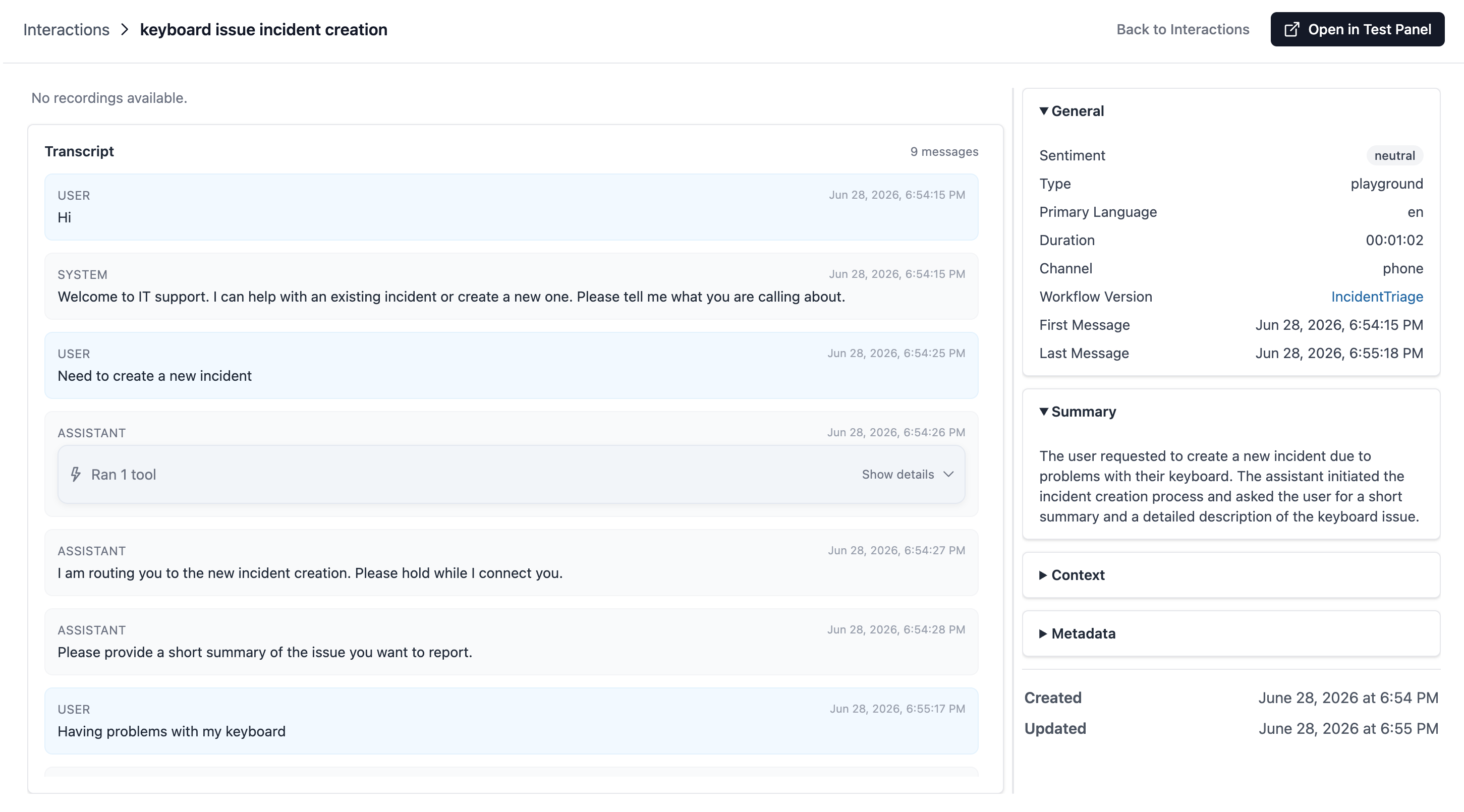
The detail view is usually split into two working areas: the transcript on the left and the interaction details on the right.
Read the transcript first
Section titled “Read the transcript first”Start with the transcript before drawing any conclusions about what went wrong.
- User messages — shown with a blue background
- Assistant messages — shown with a gray background
- Tool calls — shown inline with the tool name, reason, and arguments
- Tool results — shown with the result data
Each message includes its timestamp and per-message sentiment.
If the interaction has an audio recording (voice interactions), an audio player appears at the top with play/pause, skip, and volume controls.
Use the details pane to verify context
Section titled “Use the details pane to verify context”After the transcript, use the right pane to confirm the interaction metadata:
- Sentiment for the overall tone.
- Type for whether the interaction came from a live channel or test surface.
- Primary Language for the language detected.
- Duration for how long the interaction lasted.
- Channel for whether it came from phone, chatbot, email, WhatsApp, or SMS.
- Workflow Version for the exact workflow version that handled it.
- First / Last Message to understand timing.
Expandable sections then help you inspect:
- Summary for the AI-generated conversation summary.
- Context for structured runtime context.
- Metadata for additional stored fields.
Resume an interaction in the test panel
Section titled “Resume an interaction in the test panel”You can replay an interaction in the workflow test panel to debug or re-test:
- Open an interaction.
- Click Resume Interaction in the toolbar.
- The workflow builder opens with the interaction loaded in the test panel.
This lets you see how the workflow processed the conversation and test changes against real data.
Common debugging questions
Section titled “Common debugging questions”- Which version handled this conversation? Check the workflow version link in the details pane.
- What did the user actually say? Read the transcript in order instead of relying only on the summary.
- What did the workflow decide? Review assistant replies, tool calls, and branch outcomes.
- Which tool failed or returned the wrong data? Open the tool call details and compare them to the expected tool inputs and outputs.
- Did the interaction include audio? Check the recording area and the channel details.
Finalization stores the completed state of the interaction, including end timestamps and any generated analysis configured on the workflow version.
What interactions are good for
Section titled “What interactions are good for”- Reviewing real user phrasing and assistant responses.
- Verifying whether a published workflow version behaved as intended.
- Comparing live behavior with a fixed draft before republishing.
- Inspecting tool usage, summary quality, and voice-channel details.
How are interactions created? Interactions are created automatically when an end user communicates with an AI workflow through an entry point, or when you use the test panel in the Workflow Builder.
Can I delete interactions? Interactions are read-only records. They cannot be deleted from the interactions page.
What generates the topic and summary? The AI workflow generates these using the analysis prompts configured in the workflow’s Configuration tab (under Analysis Prompts).
Can I listen to voice call recordings? Yes. If the workflow has call recording enabled (in Phone Settings), the audio player appears at the top of the transcript.
Related pages
Section titled “Related pages”- AI Workflows — the workflows that generate interactions
- Entry Points — the channels through which interactions arrive
- Contacts — manage the people behind interactions
- Developer Runtime Guide — understand graph execution behavior