

Dial Node
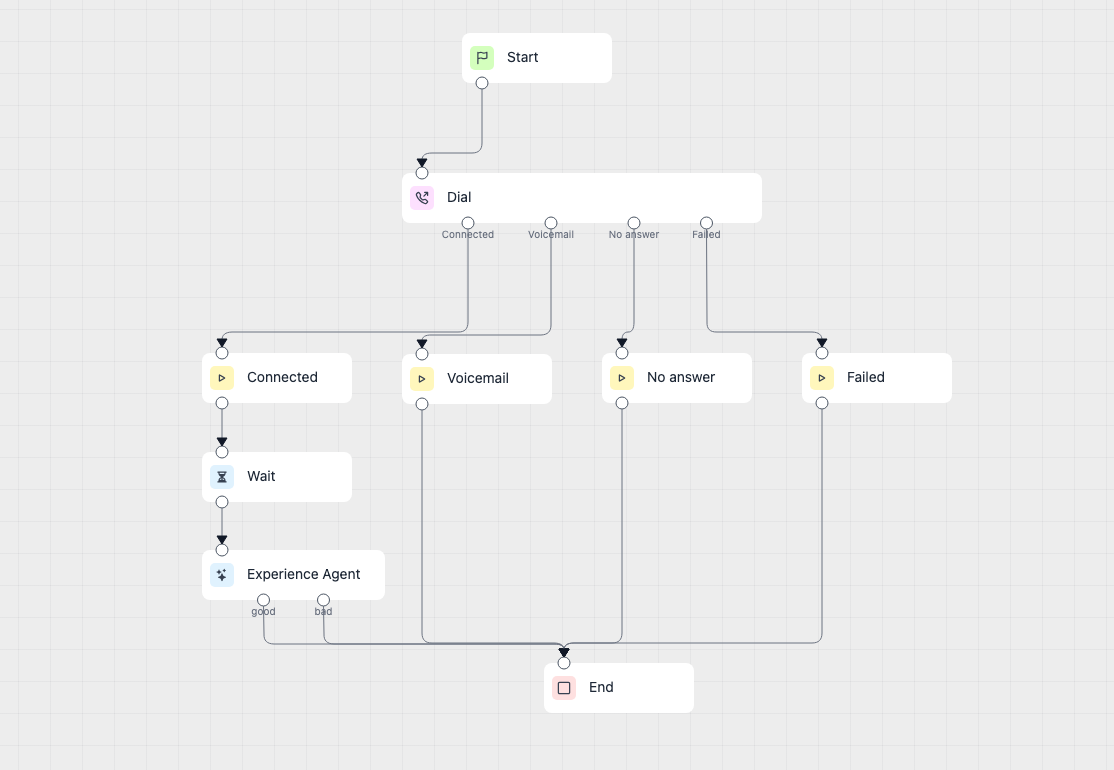
The Dial node places an outbound phone call and continues the workflow down one of four branches, depending on what answered.
Use Dial when Octo should call someone rather than wait to be called — a requested callback, a reminder, or a follow-up after a form submission.
When to choose Dial
Section titled “When to choose Dial”Dial is the right node when:
- a customer has asked to be called back,
- a workflow should follow up automatically after an event,
- or an earlier attempt needs retrying at a later time.
Everything placed before Dial runs before the phone rings. That is the point of the node: a CRM lookup or ticket creation can complete first, so the agent already knows who it is calling.
How the node works in a workflow
Section titled “How the node works in a workflow”- Execution reaches the Dial node.
- Octo checks the caller ID and places the call.
- The workflow pauses while the phone rings — this can take tens of seconds.
- When the call reaches an outcome, the workflow resumes on the matching branch.
From the Connected branch onward it is an ordinary AI voice call: the same agent, transcript, and recording as an inbound one.
The four outcomes
Section titled “The four outcomes”Exactly one branch runs per call.
| Port | When it fires | What can run there |
|---|---|---|
| Connected | a person answered | anything — AI Agent, Play, tools |
| Voicemail | an answering machine answered | Play, to leave a message — see below |
| No answer | rang out, or the line was busy | non-audio steps only |
| Failed | the call could not be placed | non-audio steps only |
On No answer and Failed there is no live call, so nothing can be spoken. Use Function, Tool, If/else, another Dial to retry later, or connect straight to End. A Play or AI Agent node on those branches will fail the run.
What to configure
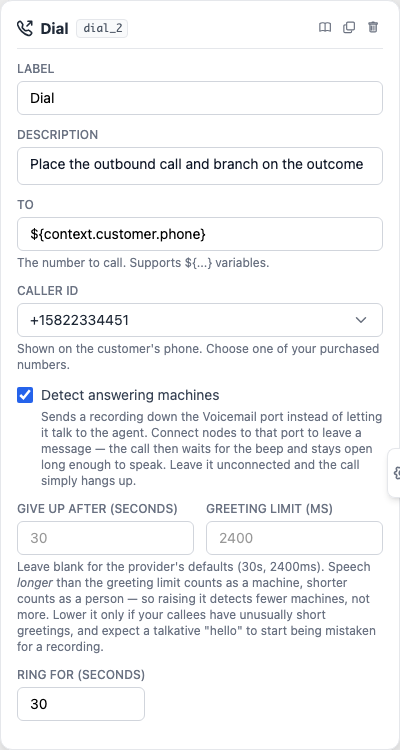
Section titled “What to configure”- To is the number to call in international format, such as
+14155550123. It accepts variables, so a scheduled callback usually reads the number from the workflow context. - Caller ID is the number shown on the customer’s phone. Only numbers you have purchased can be used.
- Detect answering machines decides whether a recording gets its own branch instead of hearing the agent. On by default.
- Ring for is how long to ring before giving up. 30 seconds by default.
Leaving a voicemail
Section titled “Leaving a voicemail”Connect a Play node to the Voicemail port and Octo will wait for the greeting to finish and the beep to sound, then keep the line open long enough for that message to be recorded.
Leave the Voicemail port unconnected and the call simply hangs up as soon as a recording is detected, which is faster and costs less.
Two detection settings appear when machine detection is on:
- Give up after caps how long detection may take before treating the call as a person.
- Greeting limit is the length of speech that counts as a machine rather than a person.
Speech longer than the greeting limit counts as a machine. Raising the limit therefore detects fewer machines, not more. If voicemail is not being detected, lower the limit or use a longer greeting.
Leave both blank unless you have a reason to change them.
Scheduling the call for later
Section titled “Scheduling the call for later”A Dial node runs whenever its workflow runs. To place the call at a chosen time rather than immediately, start the workflow on a one-time schedule.
The schedule needs three things:
- when to call, as a date and time with the timezone it should be read in,
- which workflow version to run,
- the details of the person to call, which the workflow reads as it runs.
Those details are what the Dial node’s To field points at. A callback requested through a web form, for example, carries the customer’s number through to the call:
{ "customer": { "phone": "+14155550123", "name": "Alex Morgan" }}With that in place, To is set to ${context.customer.phone} and the same workflow serves every
customer without editing the node.
Give the time in one of two forms. An exact moment, such as 2026-08-20T14:30:00Z, is used as
given. A local time, such as 2026-08-20T09:00:00, must be paired with a timezone like
America/New_York, and stays at that local hour even if daylight-saving rules change before the
call is due. A local time with no timezone is rejected rather than guessed.
The schedule fires once, then retires itself, so the customer cannot be called twice by the same request. See Scheduled Outbound Calls for the request shape and how to check or cancel a pending call.
Common workflow patterns
Section titled “Common workflow patterns”- Requested callback — a schedule fires, the workflow looks the customer up, Dial calls them, and an AI Agent handles the conversation on Connected.
- Leave a message — Play on the Voicemail branch records a short message, then End.
- Retry later — Wait, then a second Dial on the No answer branch.
- Flag the miss — a Tool node on Failed writes back to the CRM.
Example configuration patterns
Section titled “Example configuration patterns”Visual reference
Section titled “Visual reference”The Dial node on the canvas, showing the four outcome branches:
The inspector, where the destination and answering-machine behaviour are set:
What to watch out for
Section titled “What to watch out for”- Only numbers you have purchased can be used as a caller ID.
- Play and AI Agent nodes cannot run on the No answer or Failed branches, because no call exists there.
- Very short voicemail messages are often discarded by the recipient’s carrier. Record something of a few seconds rather than a single word.
- Waiting for the beep adds however long the greeting runs, usually ten to twenty seconds. People who answer are unaffected.
- Automated calling is regulated in many countries, including restrictions on calling hours and a requirement for consent. Choose call times accordingly.
Does the workflow wait while the phone rings? Yes. The workflow pauses at the Dial node and resumes on the matching branch once the call reaches an outcome, so steps placed after Dial do not run early.
What happens if nobody answers? The workflow continues on the No answer branch. Nothing is retried automatically — add a Wait and a second Dial if you want another attempt.
Can I use a number I have not purchased as the caller ID? No. The call is rejected before it is placed.
Why was my voicemail treated as a person? The greeting was shorter than the greeting limit. Lower the limit, or record a longer greeting.
Related pages
Section titled “Related pages”- Scheduled Outbound Calls - place the call at a chosen time
- Phone Numbers - purchase and manage caller IDs
- Play Node - speak a fixed message, including into voicemail
- AI Agent Node - handle the conversation once someone answers
- Wait Node - pause before retrying a call