

Phone Numbers
A phone number is a Twilio phone number purchased and managed within the platform — used as the endpoint for voice entry points.
Phone Numbers are the inbound telephony surface for voice workflows. They are what callers dial before an Entry Point routes the call into a published workflow version.
How phone numbers fit into voice routing
Section titled “How phone numbers fit into voice routing”- A phone number is the inbound endpoint a caller reaches.
- An entry point decides which published workflow version that number should route to.
- A workflow version defines what happens after the call begins.
That means the number itself is only one part of the voice path. Buying the number is not enough on its own; it still has to be routed through an entry point.
Before you begin
Section titled “Before you begin”Phone number purchase and voice routing depend on the platform’s Twilio integration. Before buying a number, confirm:
- billing credits are available,
- you have permission to manage phone numbers and entry points,
- and a published workflow version already exists if the number is meant for immediate production use.
The backend exposes Twilio tenant setup and teardown routes for environment configuration, but those provider credentials should be handled by approved administrators and environment variables rather than copied into docs or screenshots.
Buy a phone number
Section titled “Buy a phone number”- Select Phone Numbers in the sidebar.
- Click Buy New Phone Number.
- Enter a search term — an area code or digits to match (e.g., “415”, “669”).
- Click Search. Available numbers appear as cards showing:
- Phone number
- Locality and region
- Capabilities (voice, SMS, MMS)
- Click Purchase on the number you want.
- Confirm the purchase. The number is added to your current working context and you are taken to its detail page.
Use the search step to choose numbers deliberately. Area code, region, and capabilities all affect whether the number is suitable for the workflow you plan to route through it.
Review purchased numbers
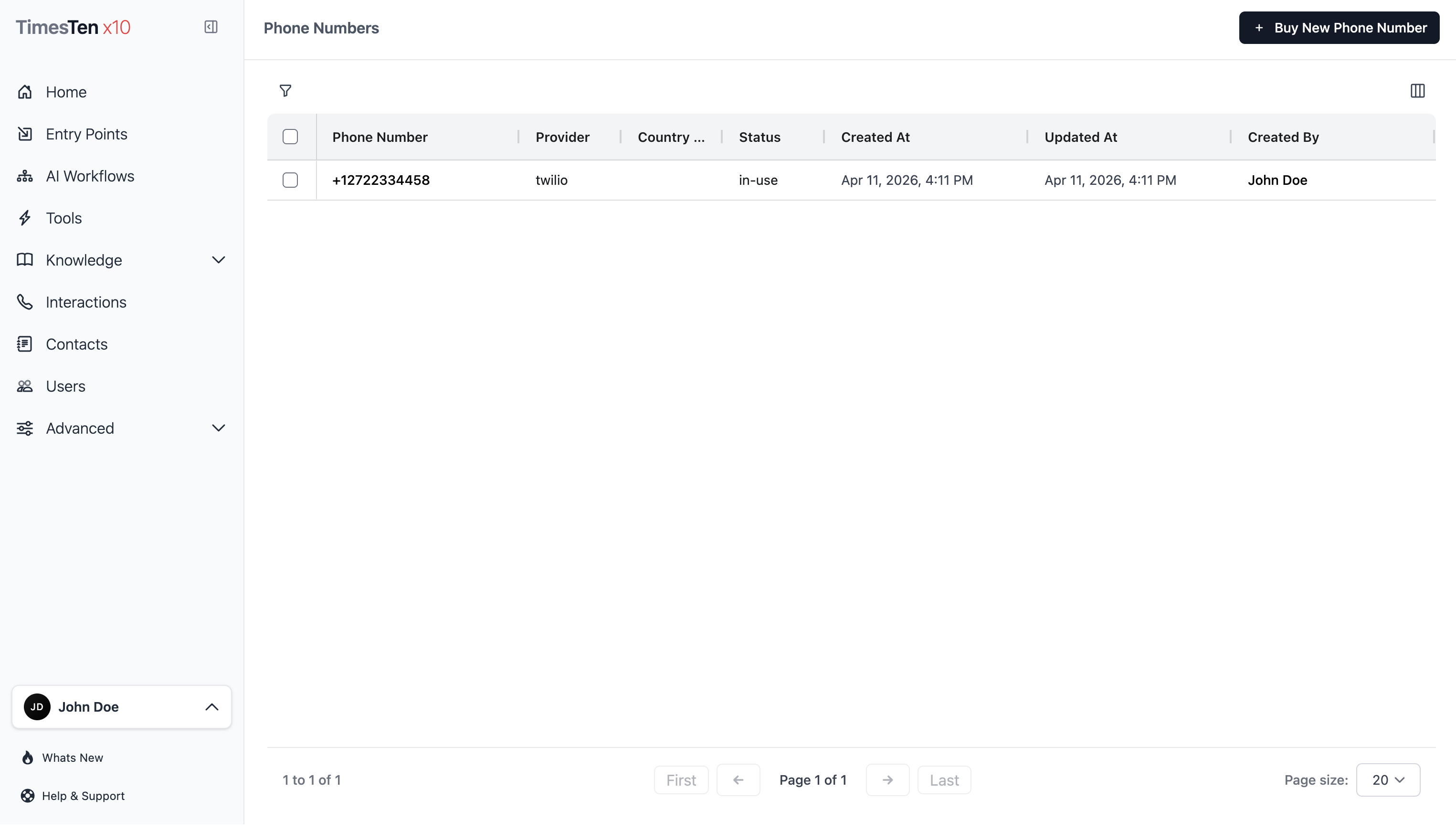
Section titled “Review purchased numbers”The list page is where you confirm what numbers you already own and which ones are active.
- Review the number itself.
- Check its supported capabilities.
- Confirm whether it is still the right number for the workflow that uses it.
- Use bulk selection when several numbers need to be released.
View phone number details
Section titled “View phone number details”- Select Phone Numbers in the sidebar.
- Click a phone number in the list.
The detail page shows:
- Phone Number — the full purchased number
- Provider — currently Twilio
- Country Code — the number’s country, such as US
- Status — the current provisioning status
- Capabilities — voice, SMS, MMS, or other supported flags
- Created At — when the number was purchased
Phone number details are read-only — they reflect what’s configured in Twilio.
Connect a number to an entry point
Section titled “Connect a number to an entry point”After purchasing a phone number, assign it to a voice entry point:
- Go to Entry Points and create or edit an entry point.
- Select Phone as the channel.
- Select the purchased number from the Endpoint dropdown.
If the number does not appear, return to Phone Numbers and confirm it was purchased into the expected working context.
Release a phone number
Section titled “Release a phone number”Releasing a phone number removes it from your Twilio account permanently. This cannot be undone.
Single release:
- Open the phone number.
- Click Delete Phone Number.
- Confirm the release.
Bulk release:
- Select Phone Numbers in the sidebar.
- Select the checkboxes next to the numbers you want to release.
- Click Release Selected.
- Confirm the release.
Recordings and operational checks
Section titled “Recordings and operational checks”Voice interactions can include recordings when recording is enabled on the workflow’s phone settings. Open the related interaction to play the recording in the UI. Developer integrations can request a presigned recording URL when they have the recording ID and appropriate access.
When something looks wrong, start with the simplest checks:
- Search returns no numbers Try a different area code or search term.
- Purchase fails Confirm credits, permissions, and provider availability.
- Calls do not arrive Confirm the number is assigned to a phone entry point with a published workflow version.
- Recording is missing Confirm recording was enabled before the interaction began.
- Released number still appears in workflow setup Update or remove the entry point that referenced it.
Can I transfer an existing phone number to Octo? Currently, numbers must be purchased through the platform’s Twilio integration. Porting existing numbers is not supported in the UI.
What countries are supported? The purchase flow currently searches for US numbers. Raise a support request for numbers in other countries.
What happens to entry points if I release a phone number? Entry points using a released number will no longer receive calls. Update or delete those entry points after releasing the number.
Related pages
Section titled “Related pages”- Entry Points — assign phone numbers to voice entry points
- Interactions — review transcripts and recordings from voice calls