

Testing and Debugging
Testing and debugging help you prove that a workflow responds correctly before it handles live traffic and after real interactions expose edge cases.
Testing and debugging are two parts of the same workflow quality loop. You test drafts before they are published, then debug real interactions when live traffic exposes missing branches, bad tool inputs, unclear prompts, or channel-specific edge cases.
How testing and debugging fit together
Section titled “How testing and debugging fit together”- Use the test panel inside Builder when you want fast feedback on a draft.
- Use Interactions when you need to inspect what actually happened in a real conversation.
- Use a new draft from the affected version when you are fixing a production issue.
In practice, the usual cycle is simple: test the draft, publish a stable version, inspect real interactions, then create another draft when the live behavior needs improvement.
Test a draft before publishing
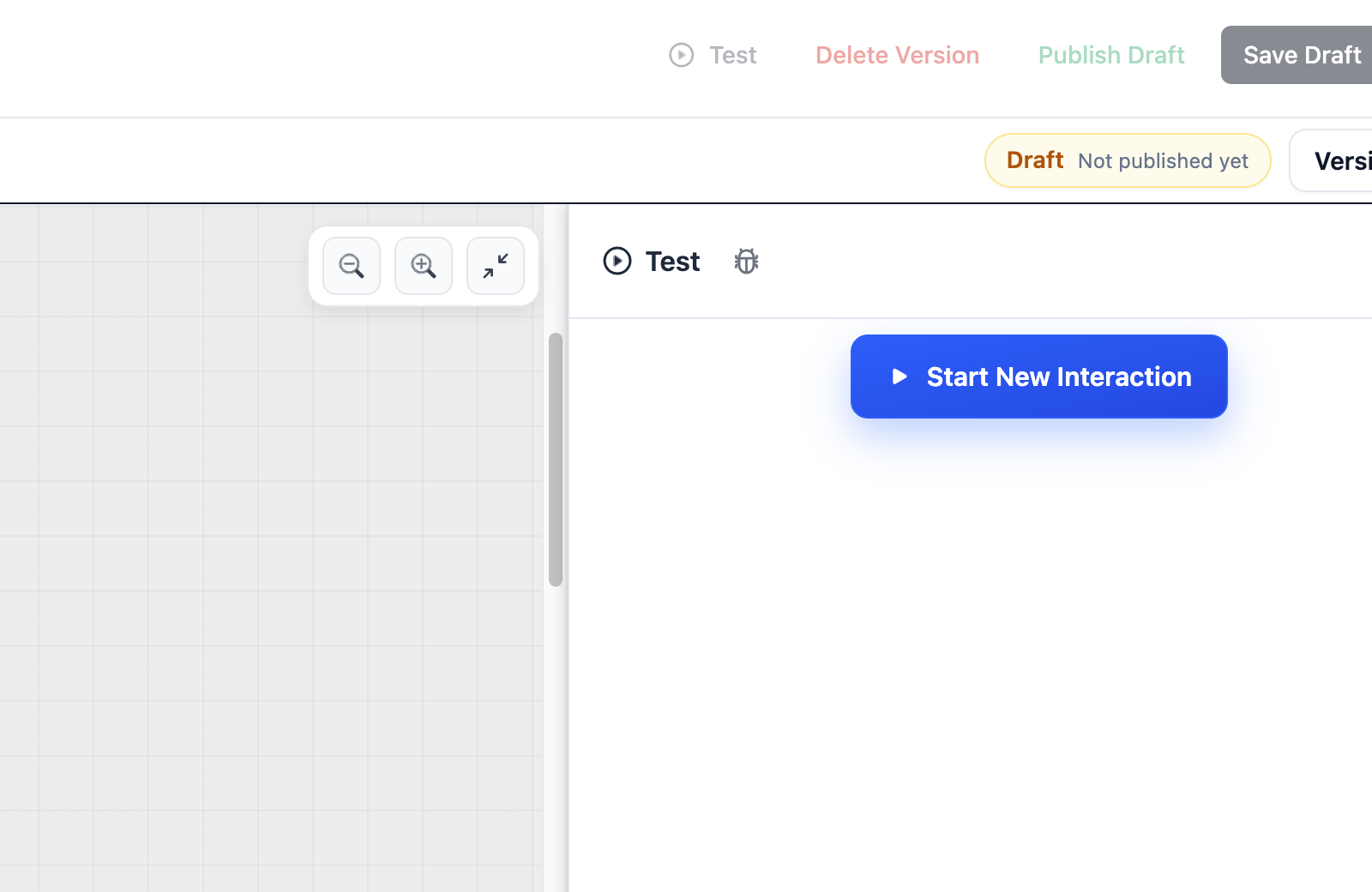
Section titled “Test a draft before publishing”- Open a workflow draft in the builder.
- Click Test.
- Confirm the connection status is ready.
- Select language or voice input options if needed.
- Send a realistic user message.
- Watch the response, tool calls, and node activity.
- Adjust nodes or configuration, save, and test again.
Use realistic prompts when you test. The value of the test panel comes from sending the kinds of requests that real users will actually make, including incomplete or ambiguous ones.
What to watch in the test panel
Section titled “What to watch in the test panel”- Agent response Confirm the wording, tone, and branch choice match the workflow’s intent.
- Tool calls Check whether the right tool ran, what arguments it received, and what result came back.
- Branch selection Watch whether AI Agent exits, If/else conditions, and End/Transfer paths match the scenario.
- Wait and resume behavior Make sure the workflow pauses only when it should and resumes on the expected next input.
- Voice behavior For voice flows, review Play, Transfer, silence handling, and any channel-specific behavior.
Debug a real interaction
Section titled “Debug a real interaction”- Open Interactions.
- Select the interaction to inspect.
- Confirm the workflow version, channel, timestamps, and metadata.
- Read the transcript in order.
- Expand tool calls and tool results.
- Review the execution path or node timeline when available.
- Open the workflow version used by the interaction before editing.
Debugging from an interaction is the best way to answer a simple question: did the workflow behave incorrectly, or did it behave correctly against incomplete or misleading input? The transcript and execution history together usually tell you which one happened.
What to inspect first
Section titled “What to inspect first”- Workflow version Make sure you are looking at the exact version that handled the interaction.
- Transcript order Read the exchange in sequence before assuming the workflow made the wrong decision.
- Tool arguments and results Compare what the node sent with what the tool expected.
- Branch path Check where AI Agent or If/else routing actually went.
- Wait state or resume point Confirm whether the workflow paused intentionally or became stuck.
- Voice or channel signals Review phone settings, Play nodes, Transfer steps, and recording behavior for voice issues.
Common debugging patterns
Section titled “Common debugging patterns”- Wrong branch after a user message Inspect the extracted or computed value that fed the branch, not only the branch node itself.
- Tool call fails or returns the wrong result Compare the runtime arguments with the tool’s expected inputs and any referenced workflow fields.
- Workflow appears stuck Check whether a Wait node was reached and whether the previous step clearly asked for the next input.
- Published behavior still looks old Confirm the interaction hit the newer version and that live traffic has actually been routed to it.
Before you republish a fix
Section titled “Before you republish a fix”- Create or open a draft from the affected workflow version.
- Change the smallest slice that explains the failure.
- Retest the exact failing scenario in the test panel.
- Test the happy path again so the fix does not break the primary flow.
- Publish a new version only after the corrected path behaves as expected.
Should I test a draft before publishing? Yes. Test at least the happy path, expected failure paths, tool calls, transfer paths, and all branch conditions.
What should I do when a published workflow fails? Inspect the interaction, create a new draft from the published version, fix the issue, test it, and publish a new version.
Related pages
Section titled “Related pages”- Interactions - inspect transcripts and metadata
- Developer Runtime Guide - understand graph execution and wait/resume behavior
- Tool node - debug tool invocations